
Uuendatud 18. veebruar 2026
How to Activate and Configure Two-Factor Authentication (2FA) in Excellent Portal?
Two-factor authentication (2FA) increases login security. When 2FA is enabled for the company, after entering their password each user must confirm their identity using a unique verification code sent to their e-mail.
How can I activate 2FA for the Company?
2FA can only be enabled by your company’s Portal Administrator.
1. Grant the necessary permission to the administrator in Excellent Books
Open Module System > Settings > “Access Groups“.
Look for the access group which is set for the Portal Admin user in your company and open that record.
Add a new line to the last empty row:
Type = Action
Right = “Excellent Portal – show Admin page”
Level = Full
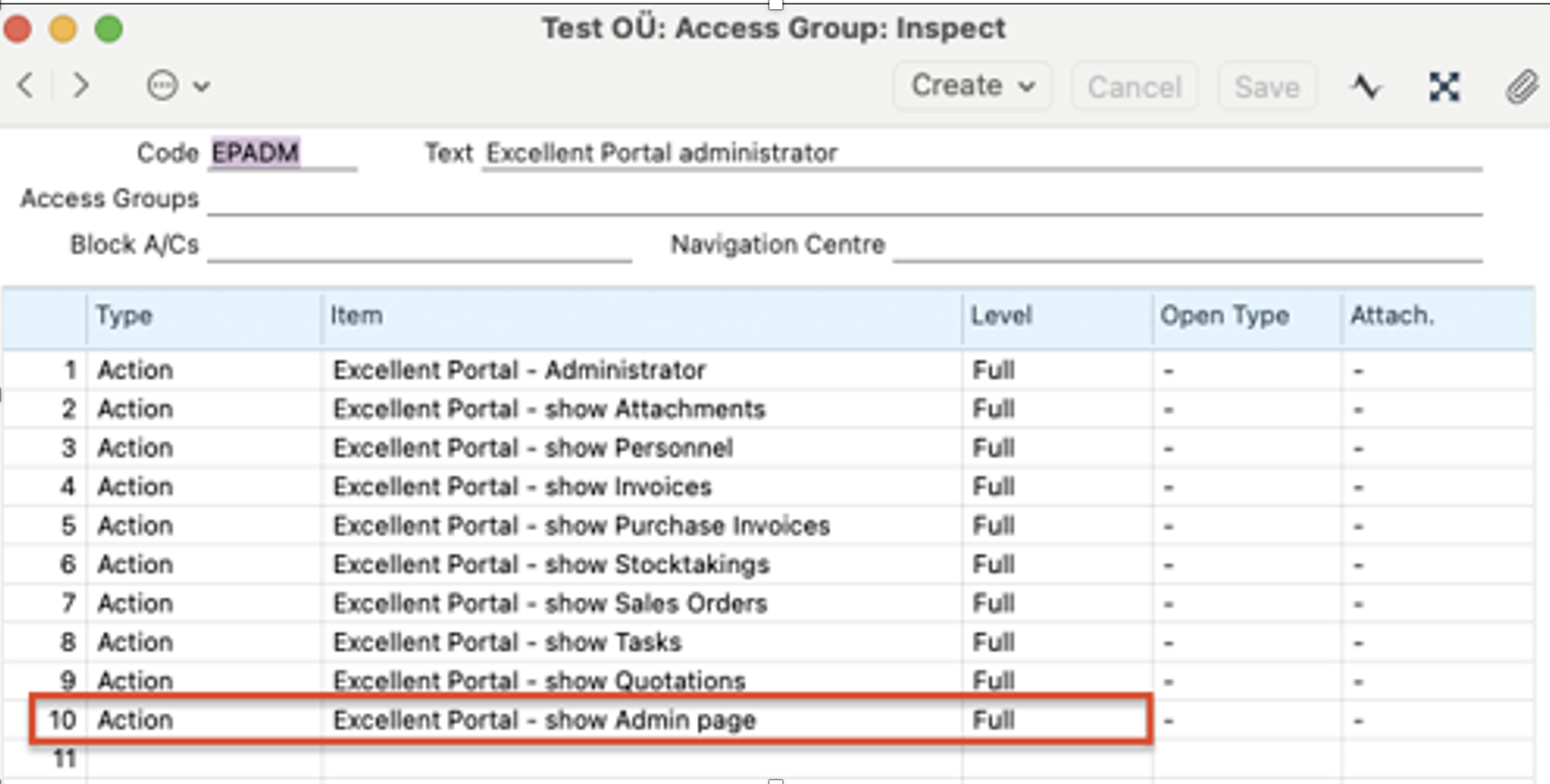
NB! If the same access group is used by other Portal users, they will also inherit this permission.
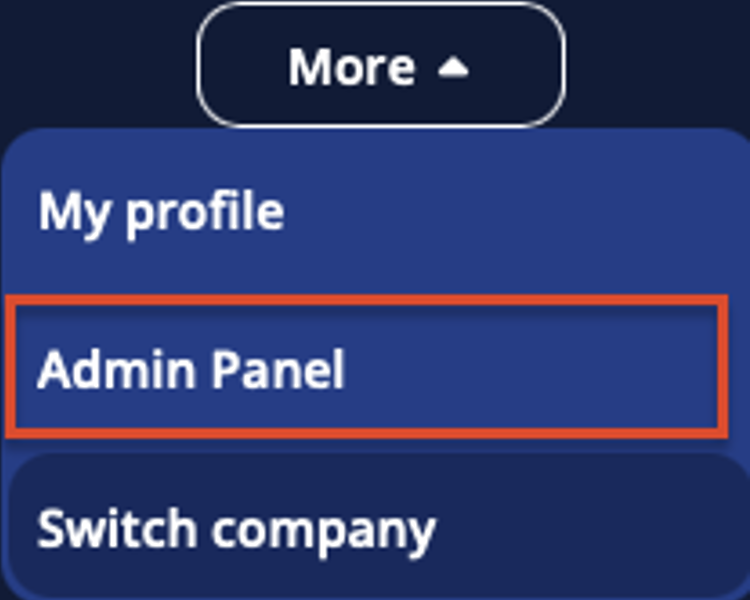
After the permission is added, the user will see a new menu option Admin Panel under the “More” menu in the Portal. From there, 2FA can be activated.
2. Activate 2FA in Portal
In Desktop view:
Log in to: portal.excellent.ee
In left menu, click “More” button > Admin Panel > “Two Factor Authorization”
Click: “Edit”;
Set the “Valid Days”. This determines how long users can log in without re-entering a new verification code.
Switch the toggle to “On”;
Click “Save”

In Mobile view:
Log in to: portal.excellent.ee
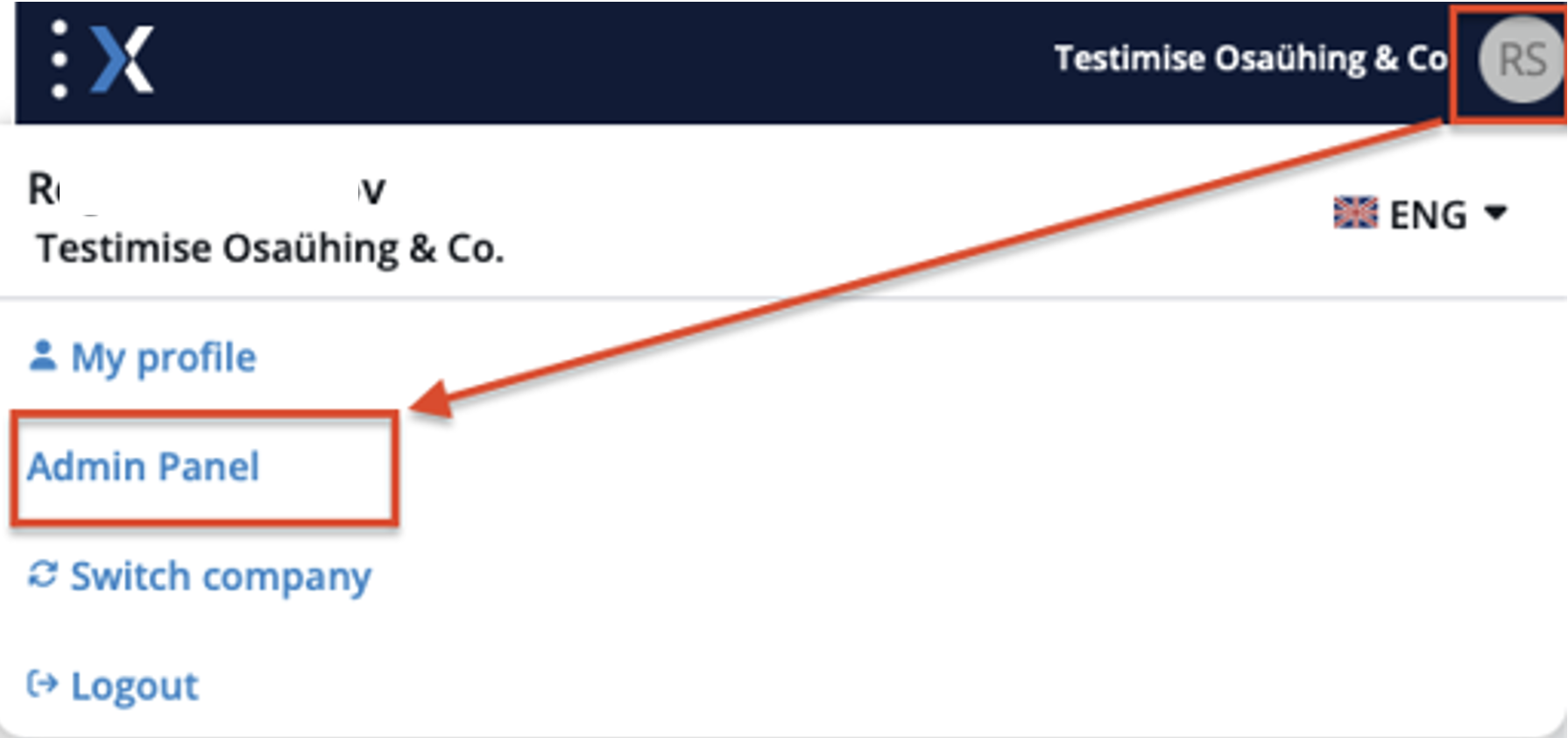
Tap user icon in the upper right corner (Circle showing your initials) > Admin Panel > “Two Factor Authorization”
Click: “Actions” > and select “Edit”;
Set the “Valid Days”. This determines how long users can log in without re-entering a new verification code.
Switch the toggle to “On”;
Click “Save”
What happens after 2FA is activated?
All company users will be required to enter a verification code sent to their email during login. A new code must be entered once the authentication session expires, based on the time period defined in the “Valid Days” field (e.g., every 3 days).
The Portal will display the “Email Verification” page where the user must enter the verification code:
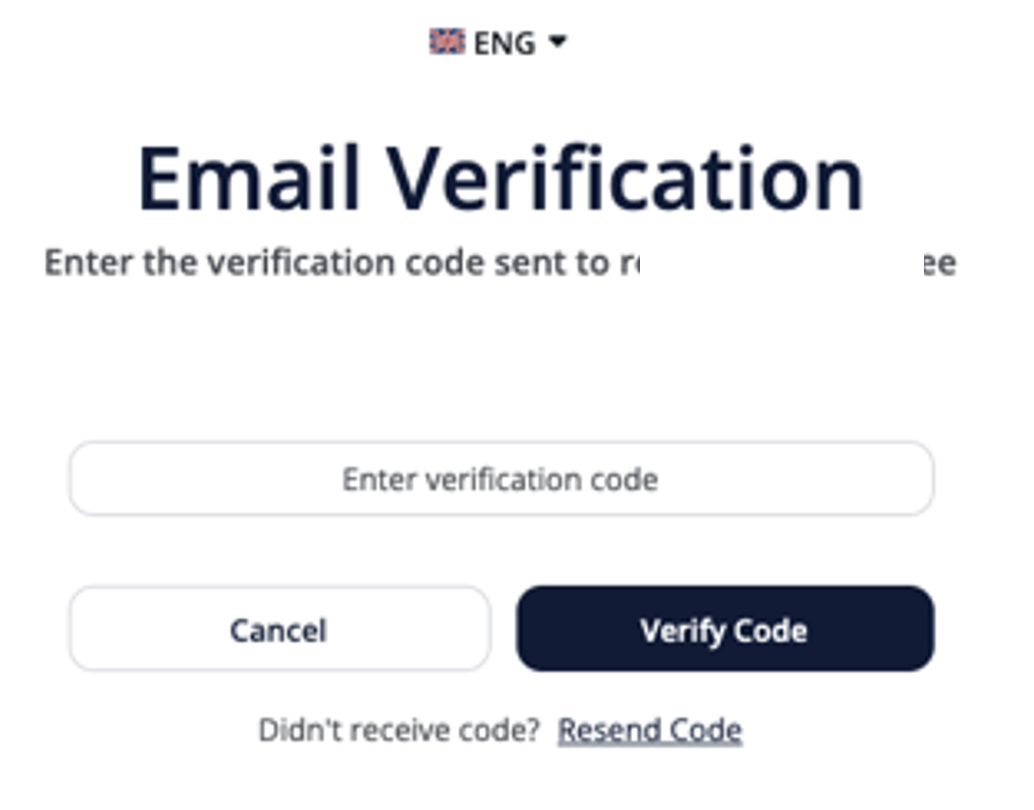
The user must enter the verification code received by email and select “Verify Code“.
If the code is correct and not expired, then user is logged in to Excellent Portal.
If the code has expired or is incorrect, then system displays the massage “Verification code expired” or “Invalid verification code”.
In this case, the user can click “Resend Code” and use the new code received via e-mail to access Excellent Portal.