
Uuendatud 18. veebruar 2026
How to configure Dashboard Indicators in Excellent Portal?
The Dashboard in Excellent Portal provides a quick and visual overview of the company’s financial situation – sales, purchases, and finance. All data is updated automatically from Excellent Books and refreshed every 3 minutes.
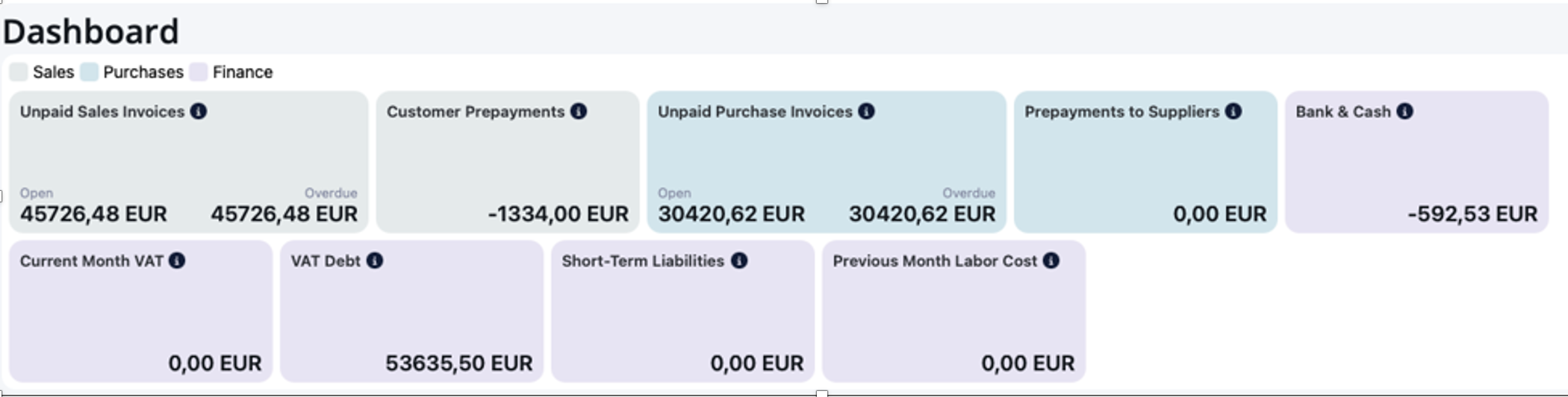
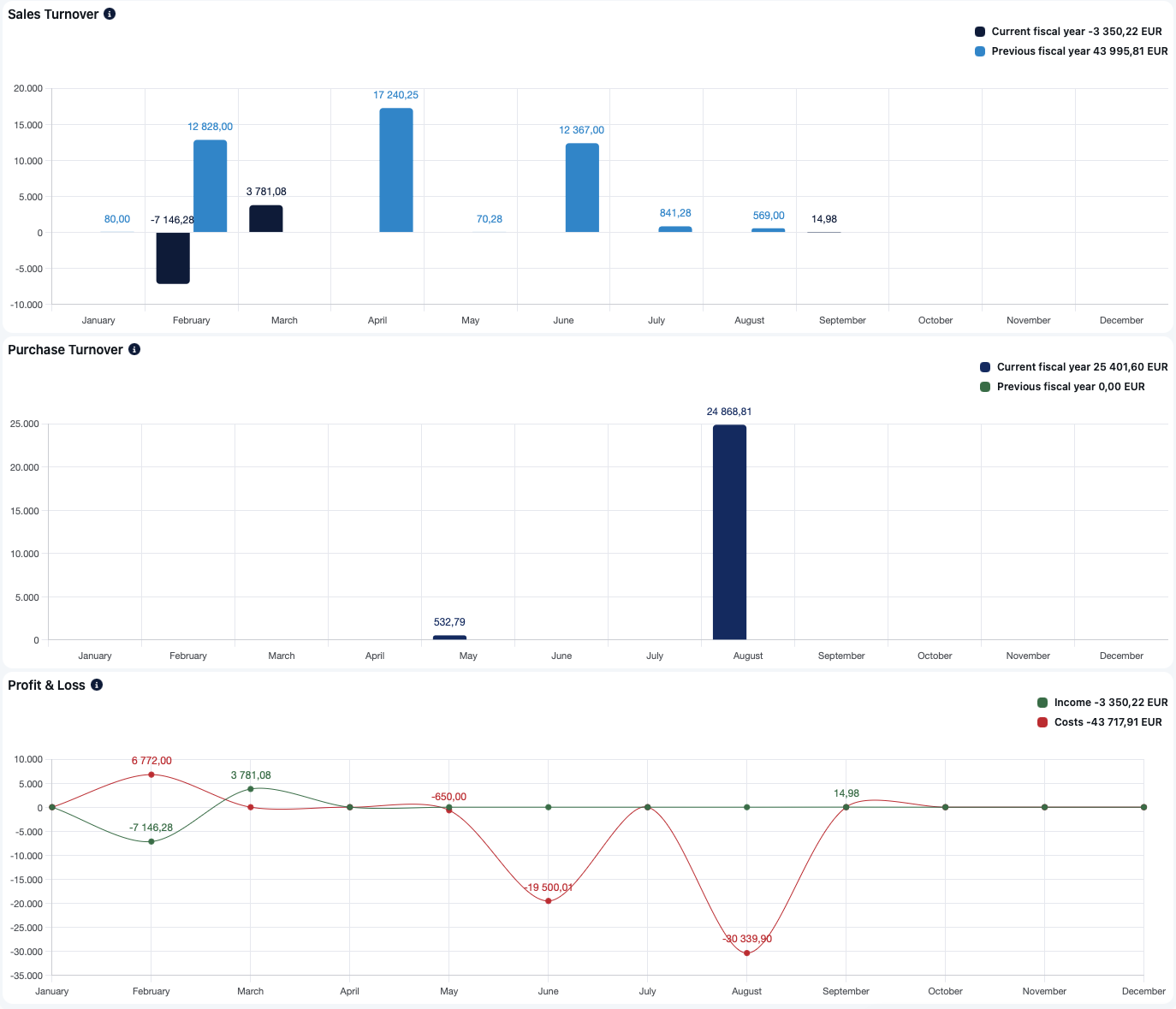
Setting Up the Dashboard Indicators
To configure the Dashboard indicators, navigate in Books to module Integrations > Settings > “Portal Dashboard“. You see following widgets and graphs list:
Sales
· Unpaid sales invoices (wigdet)
· Customer prepayments (wigdet)
· Sales turnover (graph)
Purchase
· Unpaid purchase invoices (wigdet)
· Prepayments to suppliers (wigdet)
· Purchase turnover (graph)
Finance
· Bank & Cash (wigdet)
· Current month VAT (wigdet)
· VAT debt (wigdet)
· Short-term liabilities (wigdet)
· Previous month labor costs (wigdet)
· Profit & Loss (graph)
Fill with default values
In the Portal Dashboard window open Operations menu and select “Fill with deafult values”. The system will automatically populate the accounts for those financial indicators and graphs where suitable accounts can be found based on the existing system settings.
After default accounts are filled, review the results:
- Modify or adjust any automatically detected accounts if necessary.
- Add accounts manually for indicators where the system did not find any accounts, according to the content of the widget or graph.
Entering Accounts
- Accounts can be selected from the account selection popup window.
- Multiple accounts can be added by separating them with commas, or by using an account range: 1000, 1030, 1040:1050 (in this example, the result is shown, which is the sum of account 1000, account 1030, and the account range from 1040 to 1050)
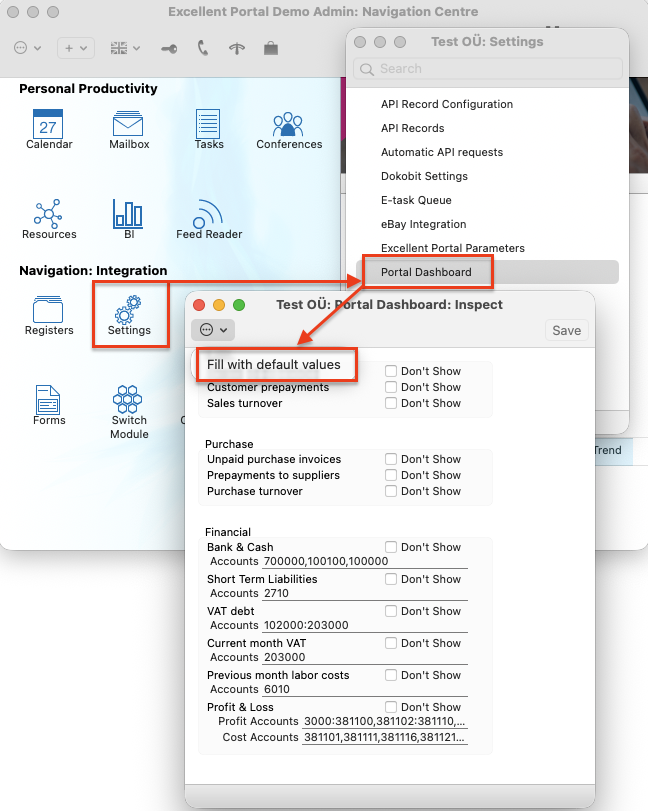
If you want to hide a widget or graph for all users in Excellent Portal, select the “Don’t Show” option.
Saving and Updating
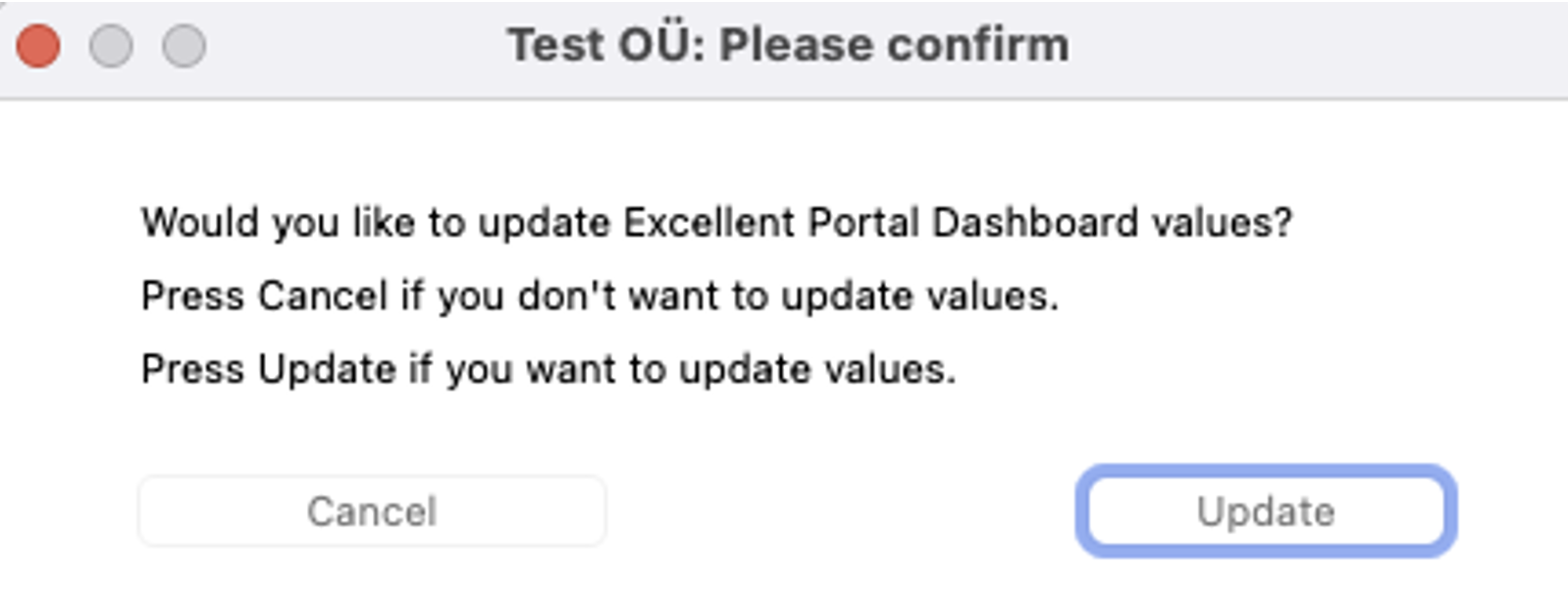
When all settings are correct, click Save. Messages appears: “Would you like to update Excellent Portal Dashboard values?”, choose “Update“.
Restricting Dashboard visibility for a User
Dashboard visibility depends on Portal user rights:
- If a user has permission to view sales invoices, sales-related widgets and graph will be displayed.
- If a user has permission to view purchase invoices, purchase widgets and graph will be displayed.
- If a user has permission to view financial reports such as the Balance Sheet, financial widgets and graph will be displayed.
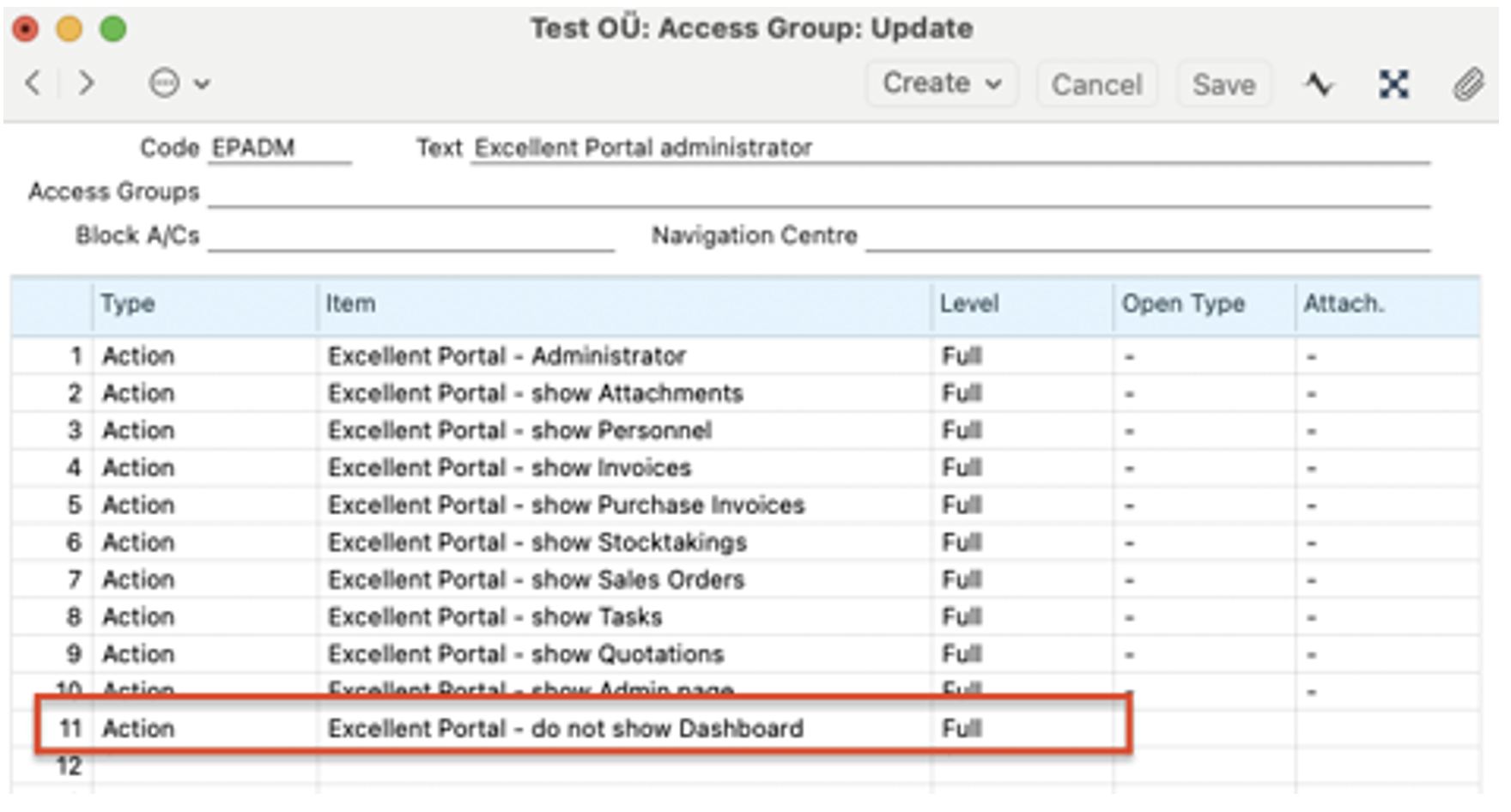
You can also hide the entire Dashboard page from selected users through their assigned Access Group in Excellent Books.
To do this, open in Books module System > Settings > “Access Groups”.
Find the appropriate group and add the right:
Type = Action
Action = “Excellent Portal – do not show Dashboard”
Level = Full
When this setting is enabled, the Dashboard page will not be visible to any users assigned to that access group.
Sind võivad huvitada ka need artiklid:
Kuidas seadistada näidikuid Excellent Portalis?
How to Activate and Configure Two-Factor Authentication (2FA) in Excellent Portal?