
Uuendatud 28. september 2026
KUIDAS SISESTADA KLIENDIKIRJA?
Moodul Kliendihaldus > Registrid > Kliendikirjad.
Avaneb aken ‘Kliendikirjad: Sirvi’, milles näed varem sisestatud kirju.
Uue Kirja sisestamiseks vajuta Koosta menüüst “Uus kliendikiri” või kasuta Ctrl+N klahvikombinatsiooni. Võid ka valida kirja, mille sarnast soovid sisestada ning teha sellest koopia osutades “Koopia“.
Avaneb uue kirja aken, mis on tühi (või kopeeritud andmed, kui valisid Koopia).
Kuna kogu Kliendikirjale sisestatav informatsioon ei mahu korraga ekraanile ära, on kaart jaotatud viieks vaheleheks. Igal lehel on nähtav kirja ülemine osa ning viis nimetusega lehte, millele vajutades saad liikuda kirja erinevate osade vahel.
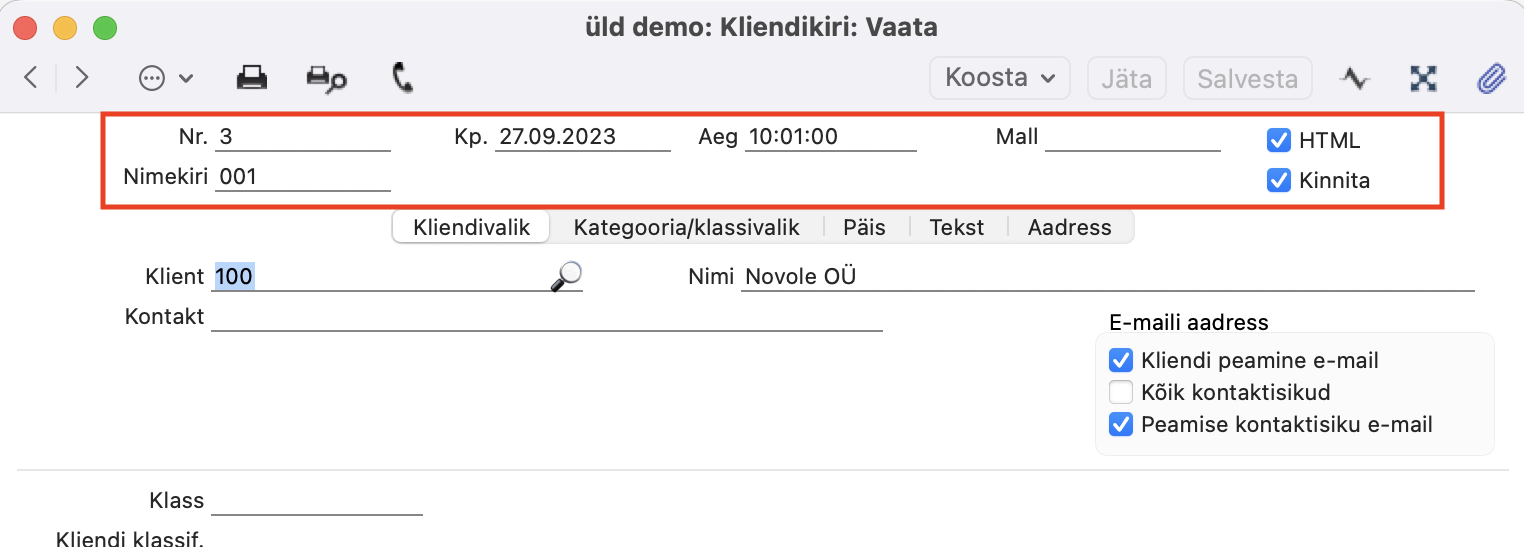
Nr. – Vali numbriseeriast (kasuta Ctrl+Enter) Kliendikirja number. Uue Kirja koostamisel annab Books sellele esimese vaba numbri seadistusest ‘Numbriseeriad – kliendikirjad’. Seda numbrit saad vajadusel muuta, aga mitte juba kasutatud numbri vastu. Mitmekasutaja süsteemi puhul antakse Kirjale number automaatselt kaardi salvestamise hetkel.
Kp. – Hetke kuupäev ehk Kirja kuupäev (võid kasutada Ctrl+Enter kalendrist kuupäeva valimiseks).
Aeg – Kirja koostamise kellaaeg. Uue kaardi koostamisel sisestatakse siia automaatselt hetke kellaaeg, aga seda saad vajadusel muuta ja ka Kirja dokumendimallile välja trükkida.
Nimekiri – Sul on võimalik luua valmis eelkirjeldatud nimekirjad klientidest, kellele tihti kirju saadad. Vali Ctrl+Enter olemasolev nimekiri või koosta uus. “E-maili nimekirjad” võimaldavad Sul saata kliendikirju samale klientide, tarnijate ja/või kontaktisikute grupile rohkem kui ühe korra. E-maili nimekirju saad kasutada kliendikirjades, mida trükid välja või mida saadad e-mailiga.
E-maili nimekirjas loetletud saajatele kirjade saatmiseks vali siia Kirja lahtrisse “Nimekiri“. Kui kasutad e-maili nimekirja, siis kõiki teisi valikuid ignoreeritakse, mida määrad vahelehtedele ‘Kliendivalik’ ja ‘Kategooria/klassivalik’.
Pane tähele, et kui “E-maili nimekiri” sisaldab Kontakti, millel oled märkinud valikud “Ära koosta masskirju” ja/või “Ära koosta mass e-maile” (vahelehel “Tingimused“), siis see Kontakt saab ikka konkreetse kirja. Loe “E-maili nimekirjadest” täpsemalt SIIT.
HTML – Kui soovid kirja teksti kujundust muuta, siis märgi “HTML” valik. Selle märkimisel ilmuvad Teksti sisestamise osale kujunduse funktsioonide ikoonid.
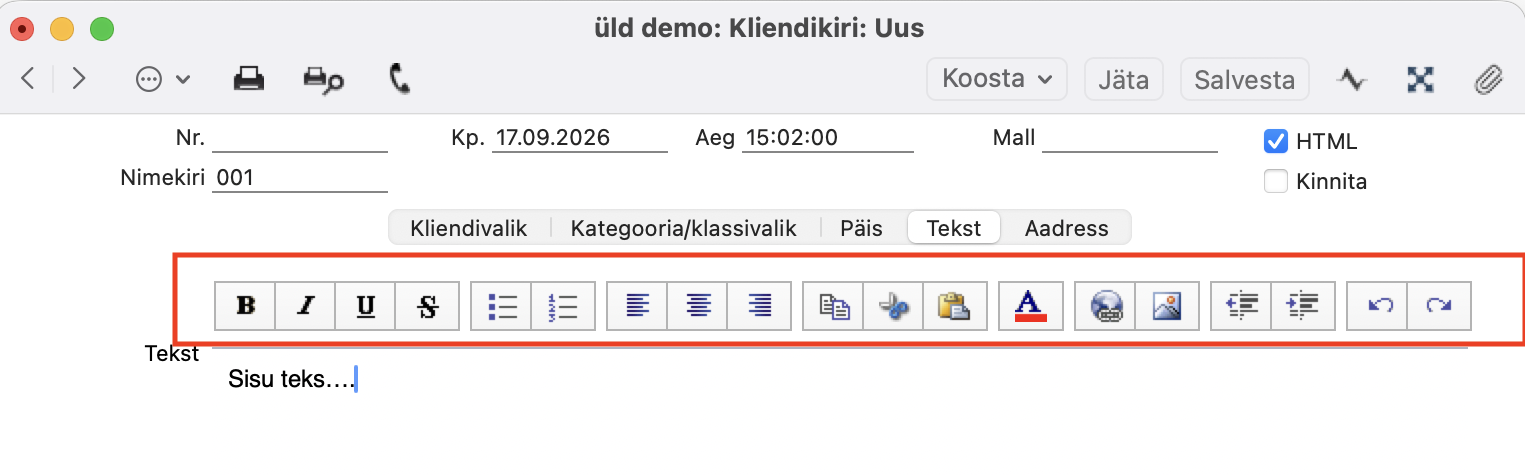
HTML-vormingu kasutamiseks (st. selle valiku märkimiseks) peab Sul olema Kliendihalduse või Tehnika moodulis seadistuses “Globaalsed kliendihalduse seadistused” märgitud valik “Kasuta kliendikirjadel HTML formaati“. Kui kasutad seda valikut, siis on HTML linnuke uutel Kliendikirjadel vaikimisi märgitud. Kui valid Kliendikirjale ‘Päis’ vahelehele “Standardteksti“, millele on märgitud “HTML”, siis märgitakse ka selle Kliendikirja peal “HTML” automaatselt.
Kinnita – Kui Kiri on kontrollitud, tuleb see kinnitada. Kinnitatud märkega Kirja ei saa muuta, kuid “Kinnita” linnukese saab alati eemaldada.
Kui oled valmis Kliendikirja kaardi põhjal kirju saatma, märgi “Kinnita” linnuke ja salvesta kaart. Kõik kirjad, mille trükid välja enne “Kinnita” märkimist, märgitakse vesimärgiga “Koopia” (va. juhul kui sul on moodulis Üldine seadistuses “Valikulised võimalused” märgitud valik “‘Ilma ‘Proovitrükita’“).
Pärast Kliendikirja kinnitamist ja salvestamist ei saa enam Kirja kaarti muuta. See võimaldab sul Kliendikirja juurde hiljem tagasi tulla, et tekst ja saajad üle vaadata. Enne Kliendikirja kinnitamist peaksid veenduma, et saajate nimekiri on õige, ja kontrollima, et kirja tekstis ei ole vigu. Selleks saad kasutada Operatsioonide menüü funktsioon “Vaata kirja saajaid“.
Kui pead Kliendikirja pärast kinnitamist muutma, eemalda “Kinnita” linnuke ja tee muudatused.
Kui saadad kirjad e-mailiga, kasutades Operatsioonide menüü funktsiooni ‘Saada e-mail’, ei ole “Kinnita” vaja märkida. “Kinnita” linnuke ei mõjuta seda funktsiooni, kuigi võid seda siiski kasutada saajate nimekirja ja teksti säilitamiseks.
Võid valida, et Kliendikirjade kinnitamisel ja salvestamisel koostatakse automaatselt. Selleks kasuta moodulis “Kliendihaldus” seadistust “Tegevuste tüübid, allsüsteemid“, kus tuleb määrata “Tegevuse tüüp“, mida uutel Tegevuste kaartidel kasutatakse. Ühest Kliendikirjast koostatakse ainult üks Tegevuse kaart, isegi kui oled ‘Kliendivalik’ vahelehel “Klient” lahtris sisestanud tärni (*) või klientide/tarnijate vahemiku.
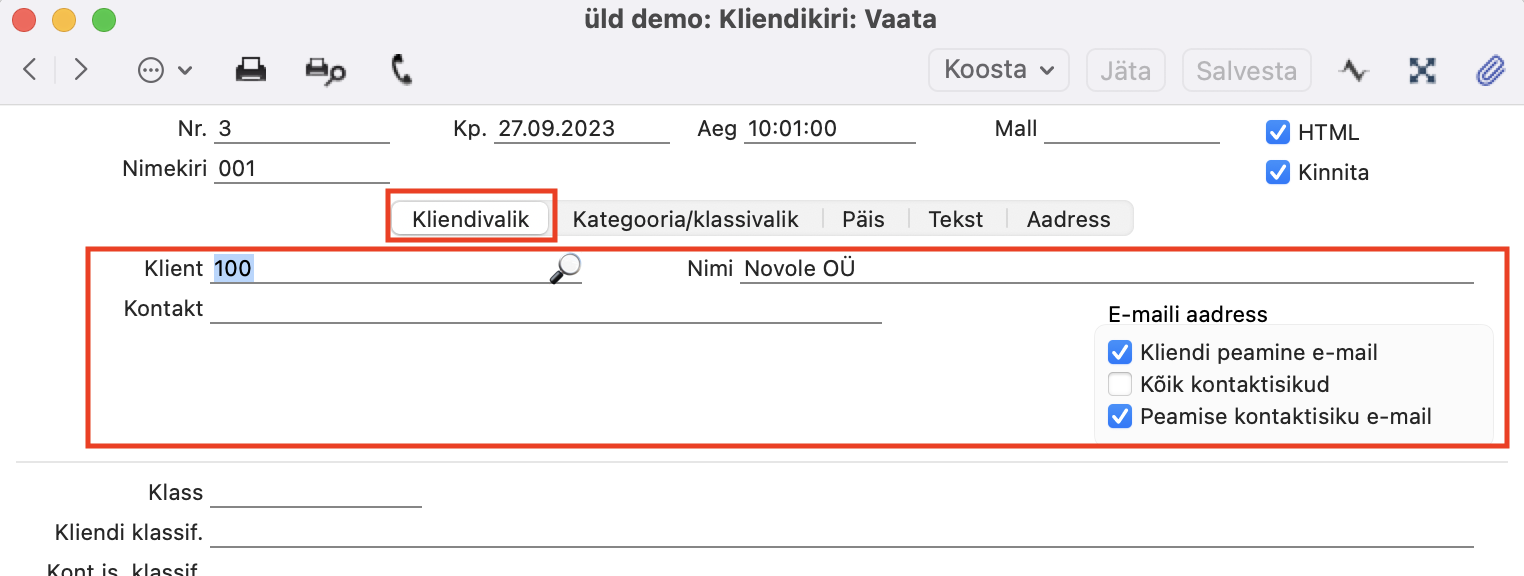
KLIENDIVALIK:
Seda osa kasutatakse koos klientide ja kontaktisikute määramiseks, kellele Kiri saadetakse. Kasuta seda vahelehte koos vahelehega ‘Kategooria/klassivalik’, et valida Kliendid, Tarnijad ja Kontaktisikud, kellele kiri saadetakse. Valikuid, mida nendele kahele osale sisestad, ei kasutata juhul, kui oled Kliendikirja päises täitnud lahtri “Nimekiri“. Saajad võetakse selle asemel e-maili nimekirjast, kuna see on prioriteetsem.
Kui Sa ei ole “E-maili nimekirja” määranud, toimub Kliendikirja saajate valimine kahes etapis. Esimeses etapis valitakse Kliendid ja Tarnijad. Neid vali vahelehtedel ‘Kliendivalik’ ja ‘Kategooria/klassivalik’: “Klient“, “Klass” ja “Kliendi klassif“.
Teises etapis valitakse nende Klientide ja Tarnijate hulgast omakorda Kontaktisikud, kes saavad e-maile. Seda saad teha lahtritega “E-maili aadress” valikutega ning väljadega: “Kontaktisik“, “Kont.is.klassif.” ja “Ametikirjeldus“.
Kriteeriume, mille määrad ‘Kliendivalik’ ja ‘Kategooria/klassivalik’ lehtedel, kasutatakse kirjade saatmiseks e-mailiga (seda saad teha “Operatsioonide” menüüst ‘Saada e-mail’). Kõiki kriteeriume ei kasutata, kui prindid Kliendikirja printerisse.
Klient – Sisesta kliendi või tarnija Kontakti number, kellele kiri saadetakse. Kui pead saatma kirja üksikule kontaktisikule, kes töötab kliendi või tarnija juures, sisesta siia klient või tarnija ja vali Kontaktisik vahetult all olevale väljale “Kontak“. Kliendikirja ei saa salvestada, kui “Klient” väli on tühi. Kui pead saatma kirja igale kliendile ja tarnijale, sisesta sellele väljale * (tärn).
Ettevaatusabinõuna, et vältida liiga paljude kirjade saatmist, saad muuta “Kliendi klassif.” täitmise kohustuslikuks, kui sisestad sellele väljale * (tärni). Selleks märgi seadistuses “Kliendihalduse seadistused” valik “Nõua kirjadel kliendiklassifikaatorit“.
Saad saata kirja klientide ja tarnijate vahemikule. Selleks sisesta vahemiku väikseim ja suurim Kontakti number, eraldades need kooloniga (:). Näiteks Kontaktidele 001 kuni 010 saatmiseks sisesta “001:010”. Pane tähele, et kasutatakse tähestikulist sorteerimist, mitte numbrilist. Seega, vahemik 1:2 sisaldab ka 100, 10109 jne.
Kui märgid kliendi või tarnija Kontakti kaardil linnukese “Ära koosta masskirju” (vahelehel ‘Tingimused’), piirab see kirjade e-mailiga saatmist sellele kliendile või tarnijale ning kõigile nendega seotud Kontaktisikutele.
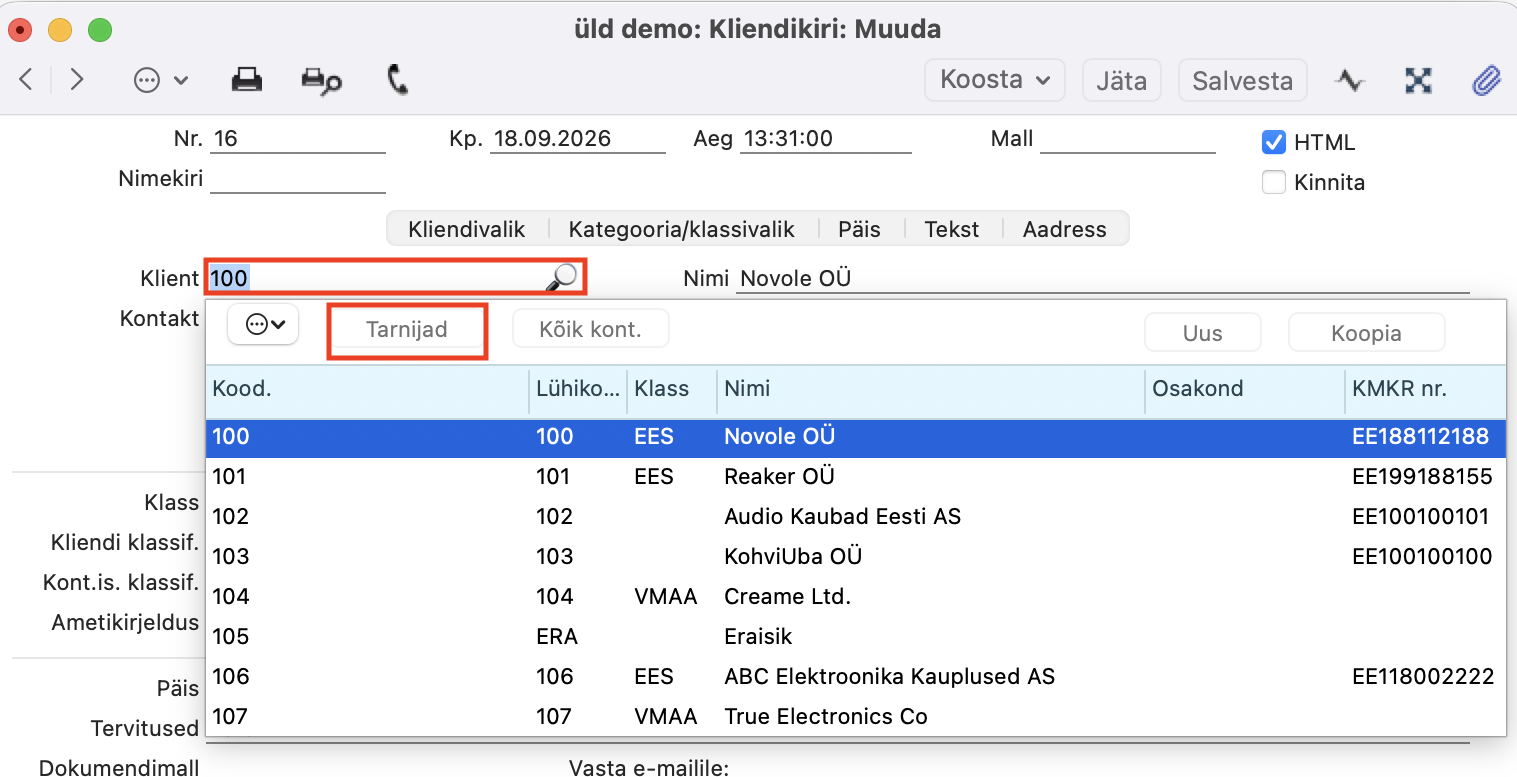
Vaikimisi näitab ‘Aseta’ (Ctrl+Enter) aken Kontakti registris olevaid kliente. Kui soovid näha kõiki tarnijaid, vajuta nuppu “Tarnijad”.
Nimi – Kui määrasid väljale “Klient” ühe kliendi või karnija, siis saad saata kirja konkreetsele Kontaktisikule selles ettevõttes, sisestades siia tema nime ja valides allpool valiku “E-maili aadress” = “Kõik kontaktisikud“. ‘Aseta’ (Ctrl+Enter) aken loetleb nüüd ainult määratud kliendiga või tarnijaga seotud Kontaktisikuid.
“Suletud” märkega Kontaktisikuid ‘Aseta’ aknas ei näidata ning seetõttu ei saa neile kirju saata.
Kui väli Klient sisaldab * (tärni) või Kontakti numbrite vahemikku, pead jätma “Nimi” lahtri tühjaks. Vastasel juhul trükitakse ainult üks kiri, mis adresseeritakse sellel väljal olevale Kontaktisikule.
Kontakt (Kontaktisik) – Kui kiri saadetakse ühele kliendile, on see võimalik adresseerida konkreetsele Kontaktisikule, kes selle kliendiga seotud on. Ctrl-Enter valides näed ainult selle kliendi Kontaktisikuid. Kui siin lahtris ei ole Kontaktisikut määratud ning valik “E-maili aadress” ei ole valitud “Kõik kontaktisikud“, siis koostatakse igale kliendile üks kiri, mis adresseeritakse Kontakti kaardi “Kontakt” vahelehel määratud peamisele Kontaktisikule.
“E-maili aadress” – Kliendikirja saajate valimine toimub kahes etapis. Esimeses etapis valitakse Kliendid ja Tarnijad, mida saad teha erinevate väljade abil kaartidel ‘Kliendivalik’ ja ‘Kategooria/klassivalik’. Teises etapis valitakse nende Klientide ja Tarnijate hulgast Kontaktisikud, kes saavad Kliendikirjast e-maile. Kasuta “E-maili aadress” valikuid teise etapi jaoks.
Pane tähele, et need valikud on valikuruudud, seega saad valida rohkem kui ühe. Kui tulemuseks on see, et konkreetne e-maili aadress saaks teoreetiliselt rohkem kui ühe e-maili, saadetakse ainult üks.
Sa pead valima vähemalt ühe nendest märkeruutudest, muidu e-mailiga kirju ei saadeta. Kui Kliendikirjal on “HTML” linnuke märgitud, siis ei ole need valikud nähtavad. Kirjade saatmiseks pead “HTML” märke eemaldama, salvestama kaardi, valima sobiva(d) “E-maili aadressi” valikuruudu(d), salvestama, märkima “HTML” linnukese uuesti ja salvestama.
“Kliendi peamine e-mail”:
E-mailid saadetakse Kontakti kaartidel olevatele e-maili aadressitele nende Klientide või Tarnijate puhul, kes vastavad saatmise kriteeriumitele (eespool väljal “Klient” määratud vahemikus olevad Kliendid või Tarnijad, või ‘Kategooria/klassivalik’ vahelehel määratud klassi kuuluvad Kliendid või Tarnijad).
E-maile ei saadeta Kontakti kaartidele, mis vastavad saatmise kriteeriumitele, kuid Kontakti kaartidel “Klient” või “Tarnija“. E-maile ei saadeta Klientidele või Tarnijatele, kellel on märgitud kast “Ära koosta mass e-maile“.
“Kõik kontaktisikud”:
Kui oled ülal lahtris “Klient” määranud ühe Kliendi või Tarnija, ja eespool lahtris “Kontakt” valinud ühe selle Kliendi või Tarnijaga seotud Kontaktisiku, siis saadetakse e-mail sellele Kontaktisikule, eeldusel et sellel Kontaktisikul on oma Kontakti kaart loodud.
Vastasel juhul (näiteks, kui oled eespool “Klient” lahtris määranud ühe Kliendi või Tarnija, kuid jätnud ülal välja “Kontakt” tühjaks, või kui saatmise kriteeriumitele vastab mitu Klienti või Tarnijat) saadetakse e-mailid kõigile Klientide või Tarnijatega seotud Kontaktisikutele.
Kui pead saatma kirja konkreetse Klassifikaatori või Ametiga kontaktisikutele, märgi just “Kõik kontaktisikud” valik ja määra “Kont.is. klassif.” või “Ametikirjeldus” vahelehel ‘Kategooria/klassivalik’.
“Peamise kontaktisiku e-mail”:
See valik on sarnane ülal kirjeldatud valikuga “Kliendi peamine e-mail“, kuna igale saatmise kriteeriumile vastavale Kliendile või Tarnijale saadetakse üks e-mail. Erinevus seisneb selles, et e-mail saadetakse kliendi või tarnija Kontakti kaardil olevale “Peam. kontaktisik” e-maili aadressile. Kui peamisel kontaktil ei ole oma Kontakti kaarti, ei saadeta sellele Kliendile või Tarnijale e-maili.
Kõigil juhtudel ei proovita saata kirja klientidele, tarnijatele ega kontaktisikutele, kellel puuduvad e-maili aadressid.
Kui valid valikud “Kõik kontaktisikud” ja/või “Peamise kontaktisiku e-mail“, ei saadeta e-maile üksikutele kontaktisikutele, kellel on märgitud “Ära koosta mass e-maile“.
Samuti ei saadeta e-maile ühelegi kontaktisikule, kes on seotud Kliendi või Tarnijaga, kellel on märgitud linnuke “Ära koosta mass e-maile” (välja arvatud juhul, kui oled eespool “Klient” lahtris määranud Klientide või Tarnijate vahemiku kooloniga, sest sellisel juhul takistab Kliendi või Tarnija kast “Ära koosta masskirju” kontaktisikute e-mailiga saatmist).
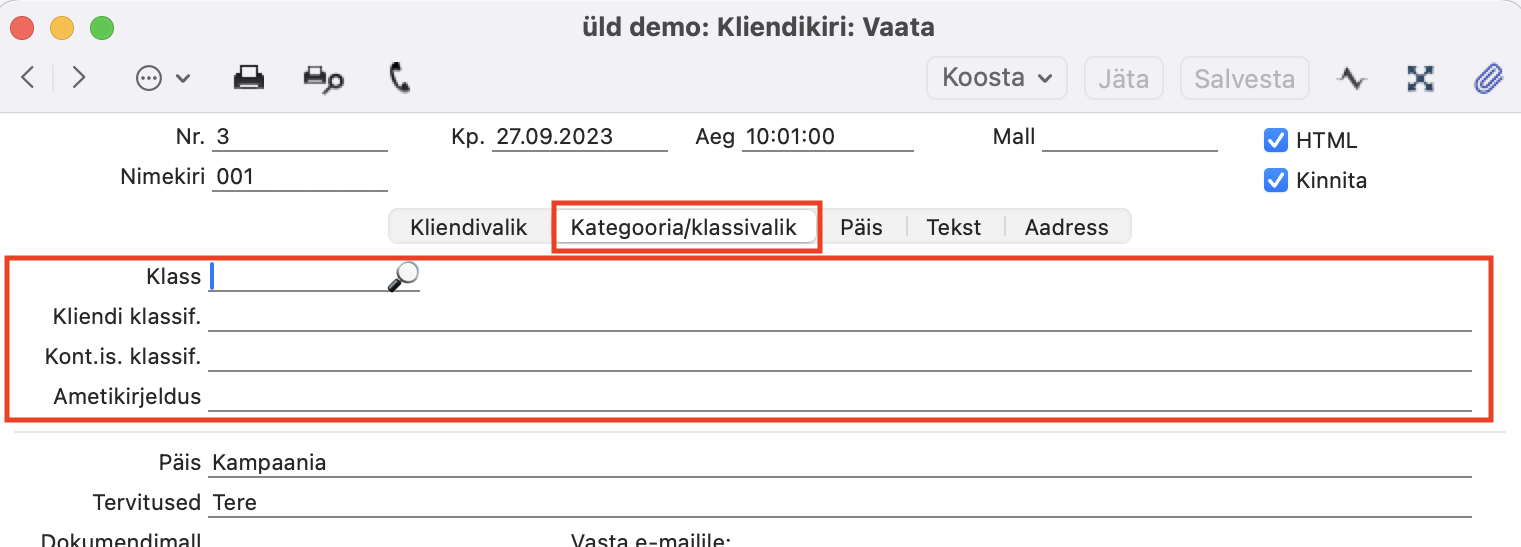
KATEGOORIA/KLASSIVALIK:
Kasuta seda vahelehte koos ‘Kliendivalik’ vahelehega, et valida Kliendid, Tarnijad ja Kontaktisikud, kellele kiri saadetakse. Valikud, mida nendele kahele lehele sisestad, ei kasutata, kui oled Kliendikirja päises täitnud lahtri “Nimekiri” ehk valinud “E-maili nimekirja”. Saajad võetakse siis “E-maili nimekirjast”, kuna sellel on prioriteet.
Kui Sa ei ole e-maili nimekirja määranud, toimub Kliendikirja saajate valimine kahes etapis. Esimeses etapis valitakse Kliendid ja Tarnijad, mida saad teha vahelehtedel ‘Kliendivalik’ ja ‘Kategooria/klassivalik’, kasutades välju: “Klient“, “Klass” ja “Kliendi klassif.”
Teises etapis valitakse nende Klientide ja Tarnijate hulgast Kontaktisikud, kes saavad e-maile. Seda saad teha “E-maili aadressi” valikutega ning väljadega “Kontaktisik” (“Kontakt”), “Kont.is.klassif.” ja “Amet” (“Ametikirjeldus“).
Valikud, mida teed ‘Kliendivalik’ ja ‘Kategooria/klassivalik’ osadel, kasutatakse kirjade saatmisel e-mailiga (kasutades “Operatsioonide” menüüst ‘Saada e-mail’). Kõiki määranguid ei kasutata, kui prindid Kliendikirju välja. Kui prindid kirju välja, siis kasuta saajate nimekirja koostamiseks “E-maili nimekirja” ehk lahtrit “Nimekiri“.
Klass – Vali klass, kui pead saatma kirja Klientidele ja Tarnijatele, kes kuuluvad konkreetsesse Kliendiklassi. Võid sisestada mitu Kliendiklassi, eraldades need komadega. Kirjad saadetakse Klientidele ja Tarnijatele, kes kuuluvad mõnda määratud Klassidest. Võid sisestada ka Kliendiklasside vahemiku, eraldades need kooloniga (:). Kirjad saadetakse Klientidele ja Tarnijatele, kes kuuluvad mistahes Klassi selles vahemikus.
Kui määrad siin Kliendiklassi ja oled vahelehel ‘Kliendivalik’ väljal “Klient” sisestanud Kliendi või Tarnija numbrite vahemiku, saadetakse kirjad sellesse vahemikku kuuluvatele Klientidele ja Tarnijatele, kes kuuluvad ka määratud Klassi.
“Kliendiklassif.” (“Kliendi klassif.”) – Kui pead saatma kirja igale Kliendile ja Tarnijale, kellel on konkreetne Klassifikaator, määra see Klassifikaator siin. Kui sisestad mitu Klassifikaatorit (eraldatud komadega), saadetakse kirjad ainult neile Klientidele ja Tarnijatele, kellele on määratud kõik loetletud Klassifikaatorid.
Kui määrad siin Klassifikaatori ja oled vahelehel ‘Kliendivalik’ lahtris “Klient” sisestanud Kliendi või Tarnija numbrite vahemiku, saadetakse kirjad igale selles vahemikus olevale Kliendile ja Tarnijale, kellel on määratud Klassifikaator(id).
Kui oled vahelehel ‘Kliendivalik’ lahtris “Klient” sisestanud tärni (*), pead siin määrama Klassifikaatori, kui kasutad seadistuses “Kliendihalduse seadistused” valikut “Nõua kirjadel kliendiklassifikaatorit“.
Tärni (*) sisestamine väljale “Klient” tähendab, et kiri saadetakse kõikidele Kontaktidele, eeldusel, et nad vastavad teistele väljadele määratud nõuetele, seega on selle valiku abil Kliendiklassifikaatori sisestamise kohustuslikuks muutmine abinõu, mille saad võtta kasutusele, et vältida ekslikult liiga paljude kirjade trükkimist.
“Kont.is. klassif.” (“Kont.is.klassif.”) – Kui soovid saata kirja igale Kontaktisikule, kellel on konkreetne “Kontakti klassifikaator”, vali see Klassifikaator siia. Samuti pead vahelehel ‘Kliendivalik’ valima valiku “Kõik kontaktisikud“. Kui sisestad mitu Klassifikaatorit komadega eraldatult, saadetakse kirjad ainult neile Kontaktisikutele, kellele on määratud kõik loetletud Klassifikaatorid.
Näide: kui vahelehel ‘Kliendivalik’ on “Klient” lahtrisse sisestatud: 001:010. Väli “Kliendiklassif.” sisaldab “A” ja väli “Kont.is.klassif.” sisaldab “B”.
Kirjade saatmise protseduur leiab vahemikus 001:010 olevad Kliendid ja Tarnijad, kellel on Klassifikaator A. Seejärel leiab see Kontaktisikud, kellel on Klassifikaator B ja kes on seotud nende Klientide ja Tarnijatega. Kirjad saadetakse nendele Kontaktisikutele.
Amet (Ametikirjeldus) – Kui soovid saata Kirjad kõigile teatud ametikohal olevatele Kontaktisikutele, vali siia vastav Amet (Ametikirjeldus). Samuti pead vahelehel ‘Kliendivalik’ valima valiku “Kõik kontaktisikud“.
PÄIS:
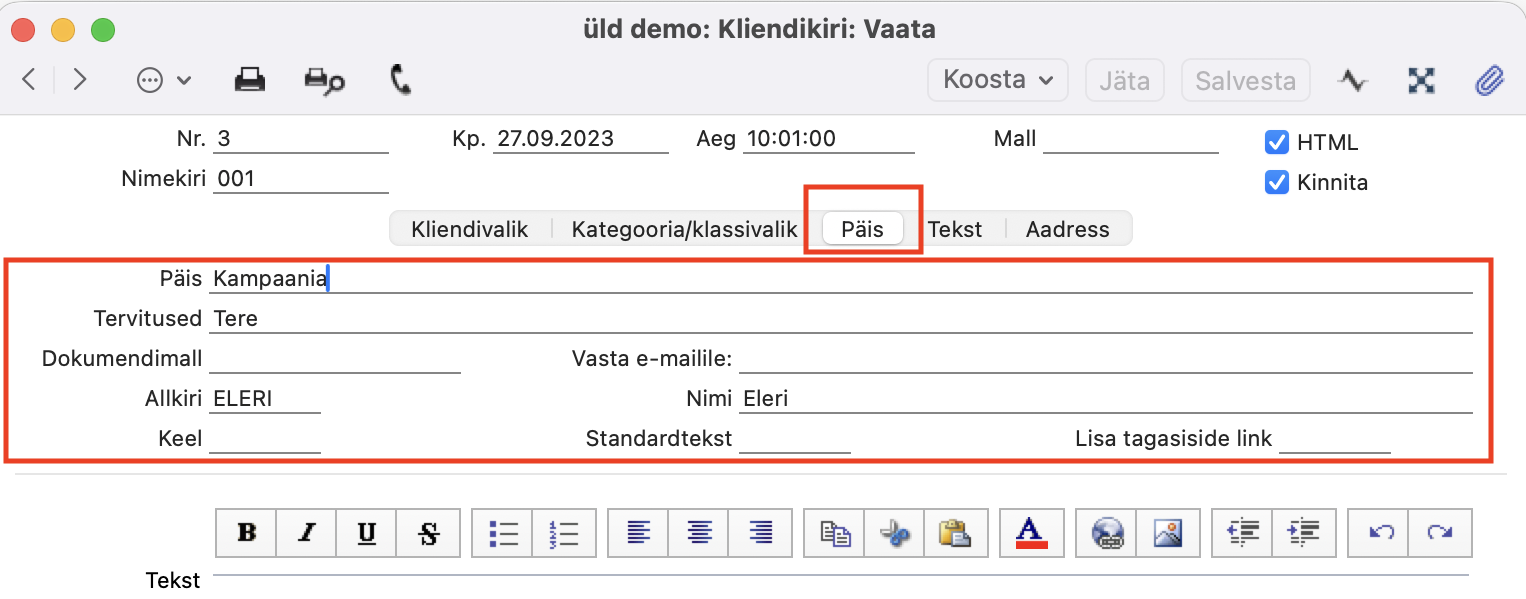
Seda osa kasutatakse koos “Tekst” vahelehega kirja teksti koostamiseks. Nii “Päis” (ehk teema), “Tervitused“, “Allkiri” kui “Nimi” saad kirja dokumendimallile trükkida. “Allkiri” lahtris saad kasutada Ctrl-Enter klahvikombinatsiooni Isiku valimiseks.
Dokumendimall – Kirju saad printida, kasutades Põhiaknas ikooni “Dokumendid” või vajutades üksiku Kliendikirja kaardil “Printeri” ikooni või valides Fail menüüst ‘Trüki’. Dokumendimalli (st kirja malli) valik määratakse sarnaselt sellele, kuidas seda tehakse teistel Excellent Booksi vormidel.
Kõige lihtsam meetod dokumendimalli valimiseks on siiski sisestada lihtsalt selle dokumendimalli kood siia “Dokumendimall” väljale. Siiski võib enamikus olukordades olla lihtsam kasutada ühte vormi ja kirjutada see vaikimisi valik üle ainult erijuhtudel.
Keel – Kui trükid Kliendikirju välja, määratakse dokumendimalli (st kirja malli) valik ühega kahest meetodist. Võid sisestada dokumendimalli ülal olevale väljale “Dokumendimall”. Kui see väli on tühi, siis saad kasutada Kliendikirja malli ‘Dokumendimalli kirjeldamise’ akent Põhiaknalt ikooni “Dokumendid” alt. Teine meetod võimaldab kirju trükkida erinevate dokumendimallidega sõltuvalt Kliendikirja keelest. Vali see “Keel” siin.
Kui kasutad teist meetodit (st kui Kirja kaardil on väli “Dokumendimall” tühi), siis saad kirjade trükkimisel aknast ‘Dokumendid’ siin määratud “Keel” lahtri sisu üle kirjutada. See võib olla kasulik, kui Sul on näiteks standardkiri, mida mõnikord trükitakse ja mõnikord saadetakse e-postiga. Sellisel juhul sisesta aknasse ‘Dokumendimalli kirjeldamine’ eraldi read trükkimiseks ja PDF failiks. PDF real peaks väljal “Keel” olema eraldi loodud keel (nt “PDF”).
Kliendikirja koostamisel vali siia sobiv Keel, et kasutada vaikimisi printerit (tavaliselt võid jätta “Keel” lahtri tühjaks nii Kliendikirjal kui ka aknas ‘Dokumendimalli kirjeldamine’).
Standardtekst – Vajadusel kasuta seda välja “Standardteksti” valimiseks. Standardteksti kaardilt ilmub tekst “Tekst” vahelehel lahtrisse “Tekst“. Kui Standardteksti kaardil on “HTML” valik märgitud, märgitakse automaatselt ka vastav “HTML” linnuke Kliendikirja peal, kui see ei olnud juba märgitud. Kõik Standardtekstis määratud HTML-mallid kopeeritakse samuti Kliendikirjale.
Kui Standardteksti kaardile on lisatud manuseid ehk faile, lisatakse need Kliendikirjale selle salvestamisel. Kui saadad Kliendikirja e-mailiga, kasutades Operatsioonide menüü funktsiooni ‘Saada e-mail’, lisatakse need failid e-mailidele. See võib olla kasulik brošüüride, hinnakirjade, tootelehtede jne saatmisel.
TEKST:
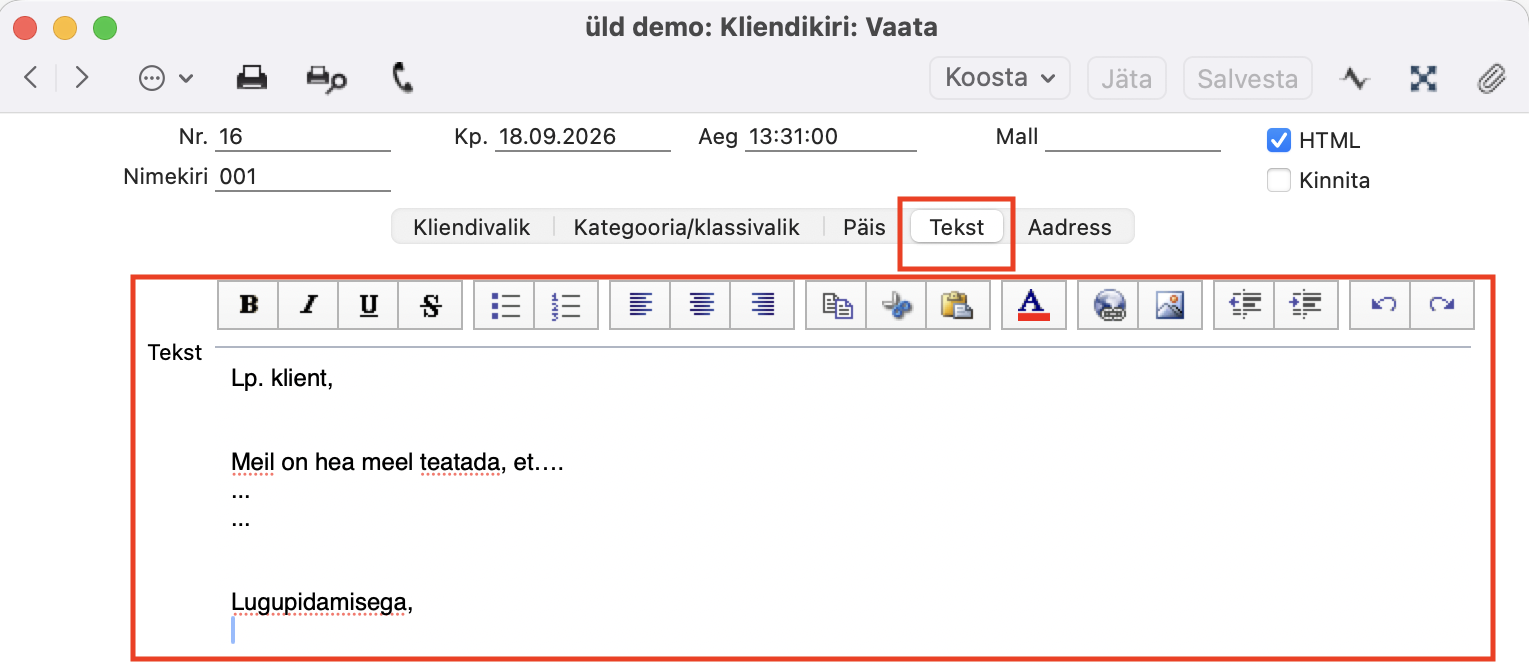
Siia sisesta kirja tekst ehk sisu. Vaheleht ‘Tekst’ sisaldab kirja teksti. Saad selle tuua “Standardtekstid” registrist, kasutades ‘Aseta’ (Ctrl+Enter) funktsiooni (sellisel juhul saad seda siin muuta ainult selle kirja jaoks), või saad käsitsi kirjutada siia ühekordselt teksti. Kui saadad Kliendikirja e-mailiga, võid lisada teksti sisse järgmised valemid, kui soovid, et e-maili tekst sisaldaks Kliendi või Tarnija kaardilt võetud asjakohast informatsiooni:
| valem tekstis | mallile trükitakse |
| ?CUr.Name? | Nimi |
| ?CUr.InvAddr0? |
Arve aadressi rida 1 |
| ?CUr.InvAddr1? |
Arve aadressi rida 2 |
| ?CUr.InvAddr2? |
Arve aadressi rida 3 |
| ?CUr.InvAddr3? | Arve aadressi rida 4 |
| ?CUr.InvAddr4? | Arve aadressi rida 5 |
| ?CUr.Phone? | Telefon |
| ?CUr.eMail? | |
| ?CUr.RegNr1? | Reg. Nr. 1 |
| ?CUr.RegNr2? | Reg. Nr. 2 |
| ?CUr.VATNr? | KMKR nr. |
| ?CUr.Comment? |
Kommentaar ‘Ettevõte’ vahelehelt |
| ?CUr.Comment0? |
kommentaari esimene rida ‘Kommentaarid’ vahelehelt |
| ?CUr.Person? |
Peamine kontaktisik |
Näiteks, võid lisada mõned nendest avaldistest e-maili, milles palud aadressiandmeid kinnitada, järgmiselt:
-
“Lugupeetud ?CUr.Person?
Palun kinnitage oma ettevõtte aadress ?CUr.InvAddr0?, ?CUr.InvAddr1?, ?CUr.InvAddr2?, ?CUr.InvAddr3?, ?CUr.InvAddr4? ja telefoninumber ?CUr.Phone?.
Lugupidamisega,”
Kui saadad kirja Kontaktisikutele (st oled kaardil ‘Kliendivalik’ valinud valiku Kõik kontaktisikud), võtavad need avaldised informatsiooni selle kliendi või tarnija Kontakti kaardilt, kellega kontaktisik on seotud, mitte Kontaktisiku enda kaardilt.
AADRESS:
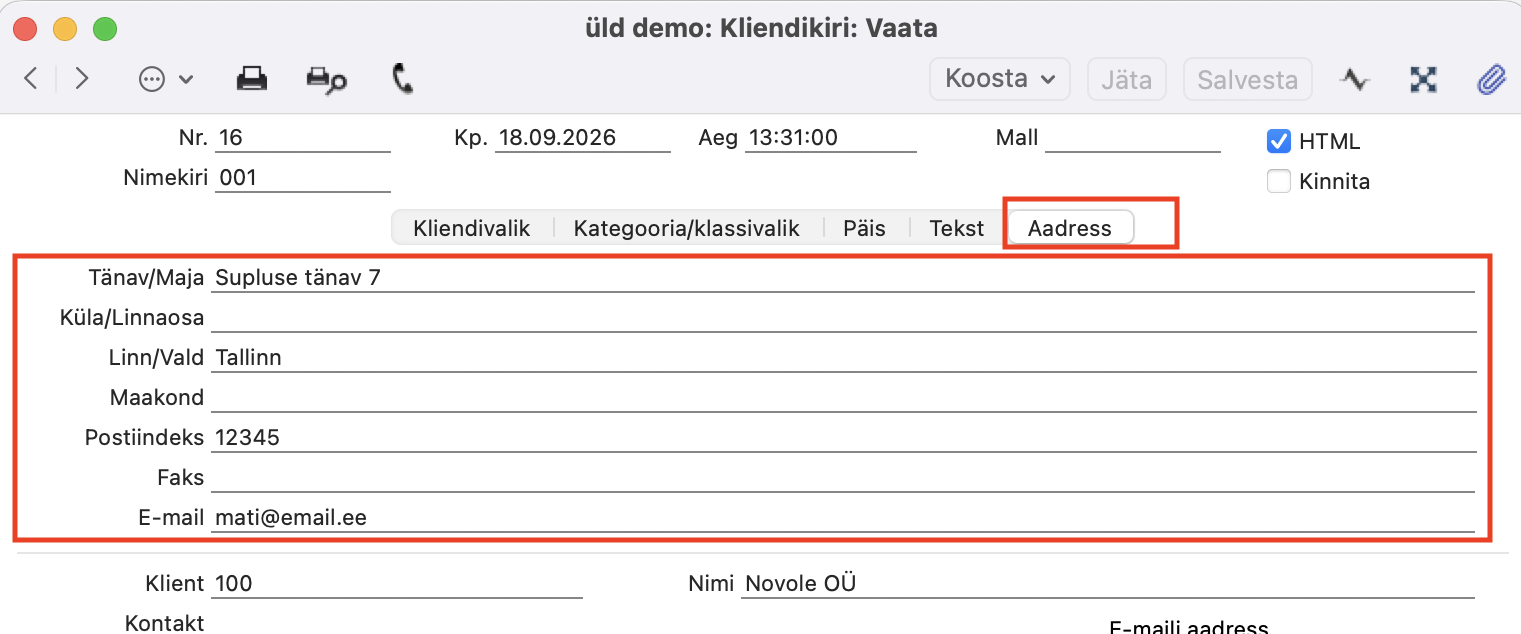
Kui sisestasid ‘Kliendivalik’ vahelehel “Klient” lahtrisse ühe Kliendi või Tarnija, ilmuvad siia selle arve aadress ja e-maili aadress. Kui väljal “Kontakt” määratud kontaktisikul on erinev aadress sisestatud, e-maili aadress, näidatakse neid siin Kliendi või Tarnija andmete asemel.
Neid välju kasutatakse ainult juhul, kui sisestasid väljale “Klient” ühe Kliendi või Tarnija ja valisid valiku “Kliendi peamine e-mail“. Sellisel juhul trükitakse siia sisestatud aadress kirjale. Kui saadad kirja e-mailiga, kasutatakse siia sisestatud e-maili aadressi.
Teisisõnu saad neid välju kasutada, kui pead muutma aadressi või e-maili aadressi, kuhu konkreetne kiri saadetakse, juhul kui Sa ei soovi, et muudatus kanduks tagasi Kliendile või Tarnijale.
Kui sisestasid vahelehel ‘Kliendivalik’ väljale “Klient” tärni (*) või Klientide või Tarnijate vahemiku kooloniga (:), siis võetakse aadress või e-maili aadress iga kliendi või tarnija Kontakti kaardilt trükkimise või e-mailiga saatmise hetkel. Kui valisid valikud “Kõik kontaktisikud” või “Peamise kontaktisiku e-mail“, võetakse need iga kontaktisiku Kontakti kaardilt.
Enne Kirja kinnitamist on soovitav kontrollida adressaatide nimekirja ning Kirja teksti. Selleks saad kasutada Kirja peal “Operatsioonide” menüü funktsiooni ‘Kirja saajad’. Loe sellest rohkem SIIT.
Sind võivad huvitada ka need artiklid:
Kliendikirja peal ei ole näha kirja saajad?
Kuidas saata kliendikirja e-mailiga?