
Uuendatud 28. september 2026
Excellent Portal User Setup (without Payroll module)
When Excellent Portal has been activated for your company, you must review the user configuration and assign the necessary permissions.
If your company uses the Payroll module follow the guide HERE.
If you dont use Payroll module in Excellent Books, follow this guide below.
1. ACCESS RIGHTS
The functionality available to a user in Excellent Portal depends on their access group. During Excellent Portal activation, three access groups are created automatically:
- EPADM – Portal administrator rights. This access group gives the user full access to all registers in Excellent Portal.
- EPMNG – manager rights for Payroll module. This access group is intended for department managers and gives access to their own data as well as to employee cards belonging to their department in the Human Resources module.
- EPUSR – Standard user rights for regular Portal users.
You can find user rights setting in module System > Settings > “Access Groups”. You can use them as they are, modify or create completely new access groups based on them for defining Portal permissions.
More detailed information about configuring user permissions is available HERE.
2. ISIKU VÕI GLOBAALSE KASUTAJA SEADISTAMINE
In Excellent Booksis thee are two types of users: Global users and Persons.
To allow a user to access Excellent Portal, you must add the required data and a User Group to their Person or Global User card. Check whether the user who will use Excellent Portal is registered in Excellent Books as a Global User or as a Person.
2.1. Configuring a Global User for Portal
2.1.1. Choose in Excellent Books module Technics > Registers > “Global Users“. If there is no global user, then continue from point no “2.2. Configuring a Person for Portal” and check if user is registered as Person.
2.1.2. Locate your user and complete all mandatory fields on the user card:
-
Name
-
Access Groups: Select the access group that includes access rights to the Excellent Portal. You may use the default groups EPUSR, EPMNG or EPADM. If a access group was already specified in the field, add the new group separated by a comma (for example: ADMIN,EPUSR).
-
StandardID: This is the e-mail which user needs to use to log in to Excellent Portal.
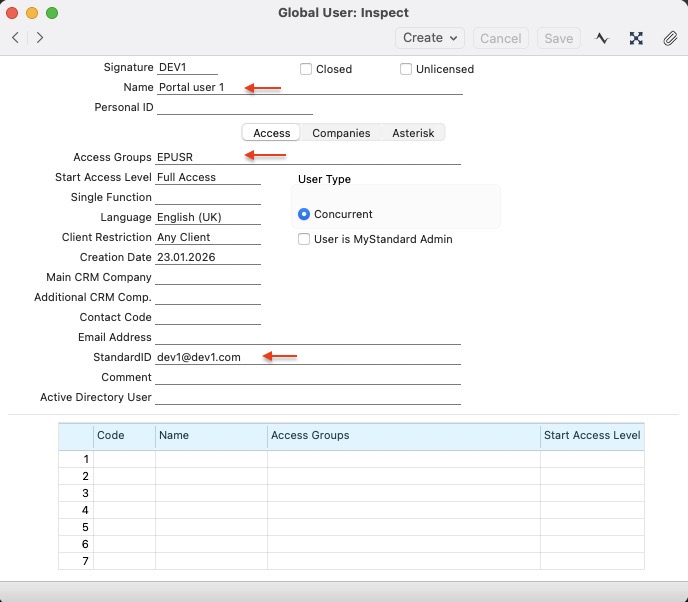
Note: If the companies matrix rows are empty, the user has access to all companies in the database and the Access Group must be defined in the header of the global user card.
If at least 1 company is listed in the matrix, then companies, where Excellent Portal is activated, must be included in the matrix. Also fill column “Access Groups” containing group that includes access to Excellent Portal.
2.2. Configuring a Person for Portal
Isiku kaarti pead täiendama ainult juhul, kui Globaalse kasutaja kaarti ei olnud seadistatud.
2.2.1. Select module System > Registers > Persons.
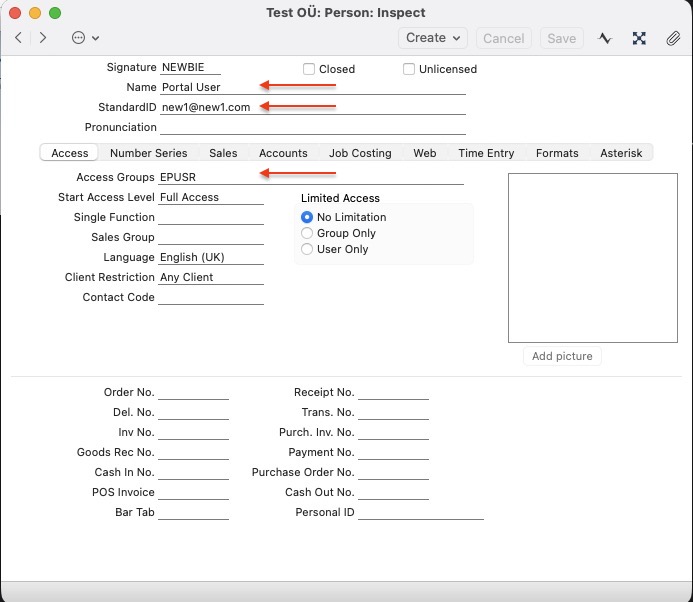
2.2.2. Locate your user and complete all mandatory fields on the user card:
-
Name
-
Access Groups: Select the access group that includes access rights to the Excellent Portal. You may use the default groups EPUSR, EPMNG or EPADM. If a access group was already specified in the field, add the new one separated by a comma (example: ADMIN,EPUSR).
If during Portal activation the option “Add Portal user rights for all users” was selected, the system has already assigned the access group EPUSR to all active Person records. -
StandardID: This is the e-mail which user needs to use to log in to Excellent Portal.
3. PORTALI KASUTAJAKS REGISTREERIMINE
3.1. Open your mailbox and find the e-mail informing you that Excellent Portal has been activated. Click the “Excellent Portal” button in the e-mail – this will open the Excellent Portal web environment.
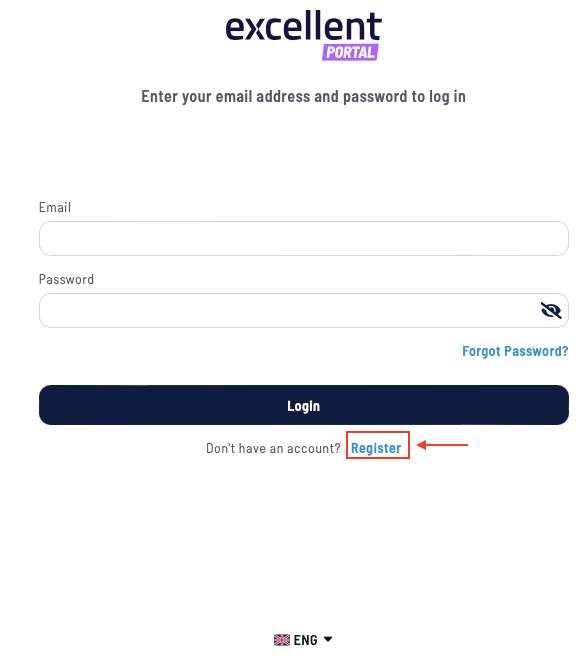
3.2. Click link “Register”.
3.3. Enter the e-mail address that is specified in the field “Login e-mail” on the Person or Global User card in Excellent Books.
3.4. Click “Create”.
A message will appear: “Email with instructions have been sent to your email”.
If the message “User with such Email was not found” appears, check the settings on the Person or Global User card in Excellent Books. If everything has been configured according to the instructions and the problem persists, please contact info@excellent.ee.
3.5. An e-mail will be sent to the entered address to activate the user.
Click the “Activate User” button in the e-mail – this will open a web page where the user must set a password.
3.6. If the password is created successfully, the user will be logged in to Excellent Portal. The user must use this e-mail address and password for all future logins.
If you want to access Excellent Portal from another device, enter portal.excellent.ee in your browser’s address bar.
The login page will open – enter your e-mail and password and click “Log in”.