
Uuendatud 28. september 2026
Activating Excellent Portal
Excellent Portal is a web-based extension of Excellent Books that allows users to access the system conveniently through a browser or mobile device. The Portal connects directly to the company’s Excellent Books database and enables users to perform required tasks without using a separate client application.
The activation process consists of two stages:
- Activating the Portal service.
- Registering users.
This manual describes 1. stage.
1. Activating the Excellent Portal Service in Excellent Books
1.1. Choose module System > Settings > “Cloud Service Settings” and open the “Other Services” tab. Find the row Excellent Portal and click “Activate”.
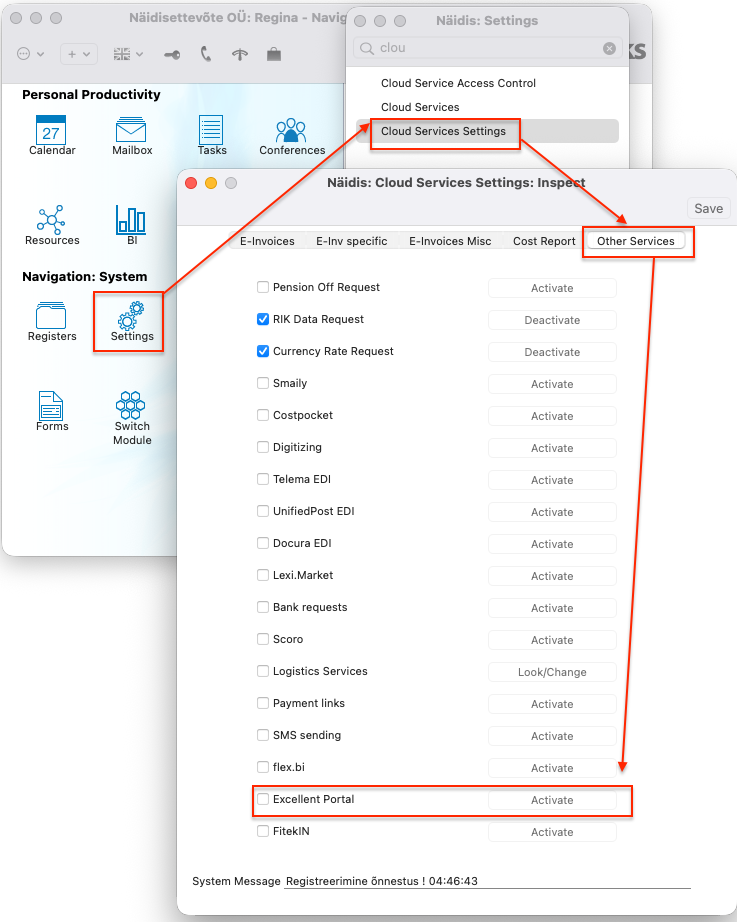
1.2. A window Excellent Portal Activation will open, containing three tabs: Activation, 2FA and Dashboard.
Before continuing with the activation, check the 2FA and Dashboard tabs to ensure all required settings are in place.
1.3. Configuring Two-Factor Authentication (2FA)
The 2FA tab in the Portal activation window displays the available 2FA options for the company. Currently, the following authentication method is supported:
“Verification code sent by e-mail“ – this option is enabled by default, but it can be turned off if necessary.
If you enable 2FA, you can then select the preferred expiration period, which determines how often users will be asked to enter a new verification code. Available options may include:
- Every 30 days (marked by default);
- Every 60 days;
- Every 90 days;
- Custom Days: (Minimum allowed value is 1 day. If value is less than 1, the system displays message “Custom Days minimum value can be 1 day”.)
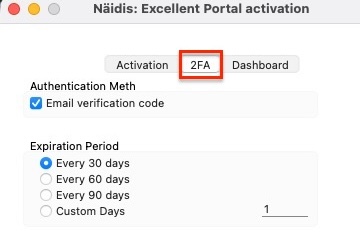
Note! After the Portal has been activated, 2FA settings can be modified later in the Excellent Portal web environment, provided that the user has Administrator Page permissions.
More detailed information about configuring 2FA if you already use Excellent Portal is available HERE
1.4. Dashboard Configuration
The Dashboard allows you to define which financial widgets and graphs will be displayed to users in Excellent Portal. When the Portal activation window opens, the system automatically detects which accounts are suitable for the indicators and populates the fields where possible. You can skip this step and later decide whether to use or hide the Dashboard page.
On the Dashboard tab, the user can:
review the accounts suggested by the system,
correct or remove incorrect accounts,
add any missing accounts to ensure that the indicators display accurate financial data.
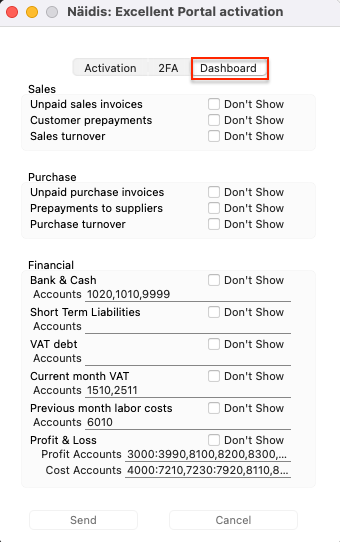
Note: These settings can also be modified after the Portal has been activated — the accounts can always be updated later in Excellent Books. Read more about Dashboard HERE.
1.5. Activation
Once the 2FA and Dashboard has been reviewed, proceed to the Activation tab and confirm the service terms.
“Add Portal user rights for all users” – if selected, the system automatically assigns the access group EPUSR (Excellent Portal User) to all active Persons (in module System). If a Person already has an Access Group assigned, EPUSR is added next to the existing group (separated by a comma). This ensures that all current users receive default Portal permissions immediately after activation. If the checkbox is not selected, Portal access rights must be assigned manually.
Activate Portal by selecting “I agree to the terms” and click “Send”
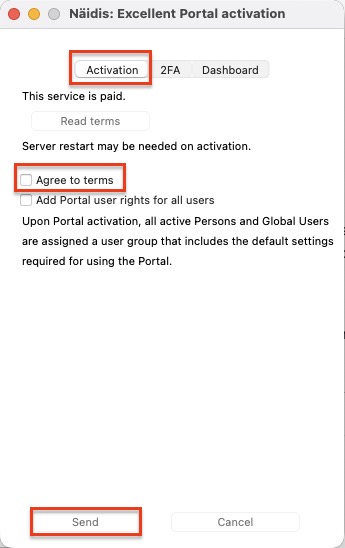
If any required configuration is missing, the system will display a corresponding message (for example, “Database key missing”, “E-mail address not defined”, etc.). Complete the configuration indicated in the message and try activating the service again.
When the Portal service has been successfully activated, the system will send a confirmation e-mail.
2. SETTING UP USERS
If “Excellent Portal” is activated, then you need to check users settings and give permissions. Continue with users set up, depending if Payroll module is in use or not.
A) If Payroll module is not in use, then follow Persons and Global users set up by this manual HERE.
B) If Payroll is in use, then follow this manual HERE.
(veebiportaal, portaal, veebiliides, veebikeskkond, veebi portaal, veebipõhine töölaud, veebist kasutamine)